← Back to all posts
How to Use Gemini in Google Docs: Bottom Bar, Refine, Side Panel and Sources
Published 2026-10-3112 min read
geminigoogle docsgoogle workspaceai writingbeginners
Academl courses: 7 days of full access, no cardStart free →
To use Gemini in Google Docs, open a document, click Gemini on the bottom bar and type the change you want. Refine on highlighted text offers quick actions such as Shorten and More formal. Gemini writes suggestions into the document; you accept them one by one or all at once. It needs an eligible Google Workspace or Google AI plan. Below: the three ways to work with Gemini in Docs, how to add Drive files as sources, prompts that work, who has access and which languages are supported.
The Gemini and the Google AI Ecosystem course has 4 lessons of 15 minutes, each with a ready prompt, a task and a quiz. The lessons on Gemini in Gmail and Docs and on NotebookLM are open without sign-up, and signing up gives 7 days of full access, no card needed.
Updated October 31, 2026. Buttons, plans and languages were checked against Google's Docs and Gmail Help on that date; the sources are linked in each section. Google changes these menus often, so the labels in your account can differ slightly.
Gemini in Docs needs an eligible Google Workspace plan (the work or school account your organization pays for) or a Google AI plan on a personal account. Google AI comes in Plus, Pro and Ultra tiers. Personal accounts without a paid plan can try the Docs features through Workspace Experiments, which Google describes as a trusted tester program for personal accounts; one feature, writing style matching, is available only there. Google's steps start with "On your computer", so plan to work in Docs in a browser on a laptop or desktop.
Sources: Google Docs Help: Collaborate with Gemini in Google Docs, Gmail Help: Gemini features by account type.
Google's own examples for the bottom bar: update a project status, turn a bulleted list into a table, add data from another file, summarize a long document, change formatting and suggest improvements to the document.
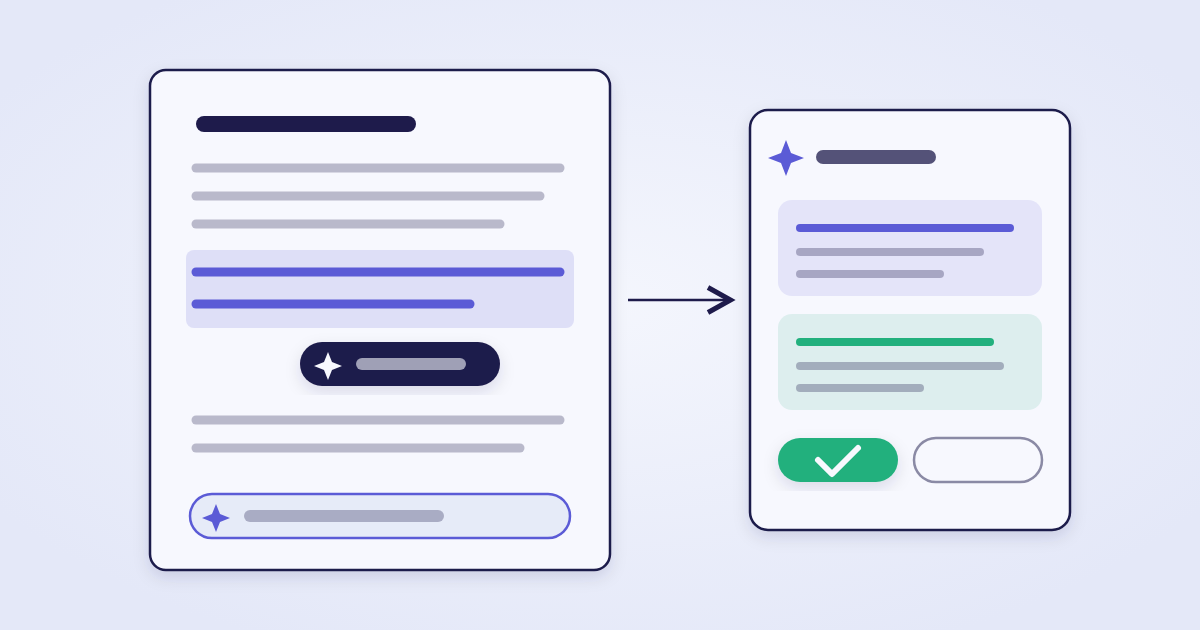
Highlight a paragraph and a floating bar with Refine appears over it. Refine has quick actions that need no prompt at all; Elaborate, More formal and More casual sit under More.
| Action | What it does · when it helps |
|---|---|
| Rephrase | Says the same thing in other words. A sentence reads awkwardly |
| Shorten | Cuts the passage down. An email summary or an executive summary has to fit a screen |
| Elaborate | Adds detail. A bullet point needs to become a paragraph |
| Bulletize | Turns text into a list. Steps or requirements are buried in a paragraph |
| Summarize | Condenses the passage. A long section needs a short lead |
| More formal / More casual | Changes the tone. The same text goes to a client and to your team |
For questions about the document, or for answers you want to read before anything goes into the text, click Ask Gemini at the top right. You can also send a prompt from the bottom bar and choose Switch to side panel to keep Gemini open while you work. In the panel Gemini can summarize the whole document or a highlighted section, rewrite a section or change its tone, draft an email or chat message, summarize files from Drive and emails from Gmail, and create images. Add "using web search" to a prompt when you want an answer from the web.
Click Insert to add an answer to the document, or Retry for a different version. Keep in mind that the side panel conversation disappears if you refresh the browser, close and reopen the document or go offline. Source: Google Docs Help: Gemini in the Docs side panel.
To let Gemini use another document, click Sources on the bottom bar, choose Add from Drive (or another location), select the files and click Add. A faster route is to type @ in the prompt and pick a file from the menu, for example Update the status table using @Weekly notes. You can also choose where Gemini may search on its own.
Name the part of the document, the change and what must stay untouched. Short, concrete prompts give edits that are easier to review.
| Task · where | Prompt |
|---|---|
| Shorten a section bottom bar | Shorten the Timeline section to 3 sentences. Keep every date. |
| List to table bottom bar | Turn the list under Pricing into a table with columns Item, Price, Notes. |
| Status from notes bottom bar | Update the project status using @Weekly notes. |
| Review a draft bottom bar | Suggest improvements to the structure of this document. Do not rewrite it. |
| Quick summary side panel | Summarize this document in 3 bullet points. |
| Plain explanation side panel | Explain this document like I'm 5 years old. |
| Email from a doc side panel | Draft an email to the team with the decisions and deadlines from this document. |
The same structure (context, task, constraint, format) works in any assistant; a step-by-step plan to build the habit is in the 4-week prompt engineering plan.
The Gemini side panel in Docs supports 29 languages: Arabic, Catalan, Chinese, Czech, Danish, Dutch, English, Finnish, French, German, Greek, Hebrew, Hungarian, Indonesian, Italian, Japanese, Korean, Malay, Norwegian, Polish, Portuguese, Romanian, Russian, Spanish, Swedish, Thai, Turkish, Ukrainian and Vietnamese.
Help me write, which drafts new text, works in 7: English, French, German, Italian, Japanese, Portuguese and Spanish (Google Workspace Help, checked October 31, 2026).
For a document in a language outside the shorter list, write your request in the side panel. Source: Google Workspace Help: supported languages for Gemini.
The same Gemini works across Workspace. In Gmail, Google's feature table lists AI Overview summaries of long threads for free personal accounts in eight languages, while Help me write and suggested replies on a free account work in the US only; Google AI and eligible Workspace plans open more features. Check the Gmail Help page for your country. In Drive, ask for files in plain words ("contracts with client X that mention a penalty"); in Sheets, ask for a formula and test it on a few rows before filling the column. Both scenarios are part of the free lesson Gemini Inside Gmail and Docs. For your own PDFs, websites and recordings, the next free lesson covers NotebookLM for your own documents.
Every Academl lesson has a short task, a quiz question and an AI tutor; after all lessons of a course you get a certificate with a verification code.
| Course and length | What you learn |
|---|---|
| Gemini and the Google AI Ecosystem 4 lessons of 15 min, about 1 hour | Gemini in Gmail and Docs, NotebookLM, very long documents and video, images, audio and video input |
| ChatGPT for Work and Business 4 lessons of 15 min, about 1 hour | Emails, custom GPTs and projects, documents and tables, voice and images |
| Claude for Analysis, Writing, and Code 4 lessons of 15 min, about 1 hour | Long documents, writing in your tone of voice, analysis workflows |
| Gemini API & Google AI 14 lessons, about 5.5 hours | For developers: building on the Gemini API |
Time. The Gemini course takes about an hour: one lesson a day finishes it in four days, and progress is saved between lessons.
Price. The first 2 lessons of every course are free without sign-up; sign-up gives 7 days of full access to the whole catalog with no card, then Pro is $9 a month or $79 a year (pricing). Your Google plan is paid separately to Google.
Open a document on your computer, click Gemini on the bottom bar and type what to change, for example shorten the Timeline section to three sentences. You do not have to select text first. For a highlighted passage, Refine offers Rephrase, Shorten, Elaborate, Bulletize, Summarize, More formal and More casual. Gemini writes suggestions into the document for you to accept or reject.
At the bottom of the document. The bottom bar is minimized by default: hover over Gemini at the bottom of the screen to show it. For a chat next to the document, click Ask Gemini at the top right, or send a prompt from the bottom bar and choose Switch to side panel.
Google requires an eligible Google Workspace or Google AI plan for Gemini in Docs. Personal Google accounts without a paid plan can try the features through Workspace Experiments, Google's trusted tester program for personal accounts. Writing style matching is available only there.
Yes. Click Sources on the bottom bar and choose Add from Drive, or type @ and pick a file from the menu, then click Add. In the side panel you can also mention files with @ and ask Gemini to summarize files from Drive or emails from Gmail.
Yes. Open the side panel with Ask Gemini and ask, for example, Summarize this document in 3 bullet points. It can summarize the whole document or a highlighted section, and Insert adds the answer to the document. The side panel history disappears if you refresh the page, reopen the document or go offline.
The Docs side panel supports 29 languages, including English, Spanish, French, German, Russian, Ukrainian, Polish, Chinese, Japanese and Arabic. Writing new text with Help me write works in seven: English, French, German, Italian, Japanese, Portuguese and Spanish.
Academl's Gemini and the Google AI Ecosystem course has 4 lessons of 15 minutes: Gemini in Gmail and Docs, NotebookLM for your own documents, very long documents and video, and multimodal work. The first 2 lessons are free; sign-up gives 7 days of full access with no card, then Pro is $9 a month or $79 a year.
Open the first 2 lessons of Gemini and the Google AI Ecosystem for free: Gemini in Gmail and Docs, and NotebookLM for your own documents. For the lessons on hours-long recordings and multimodal work, sign up for 7 days of full access with no card, then Pro is $9 a month or $79 a year.